JD Quest First Deposit: GCash, Maya, and Bank Transfer Walkthrough
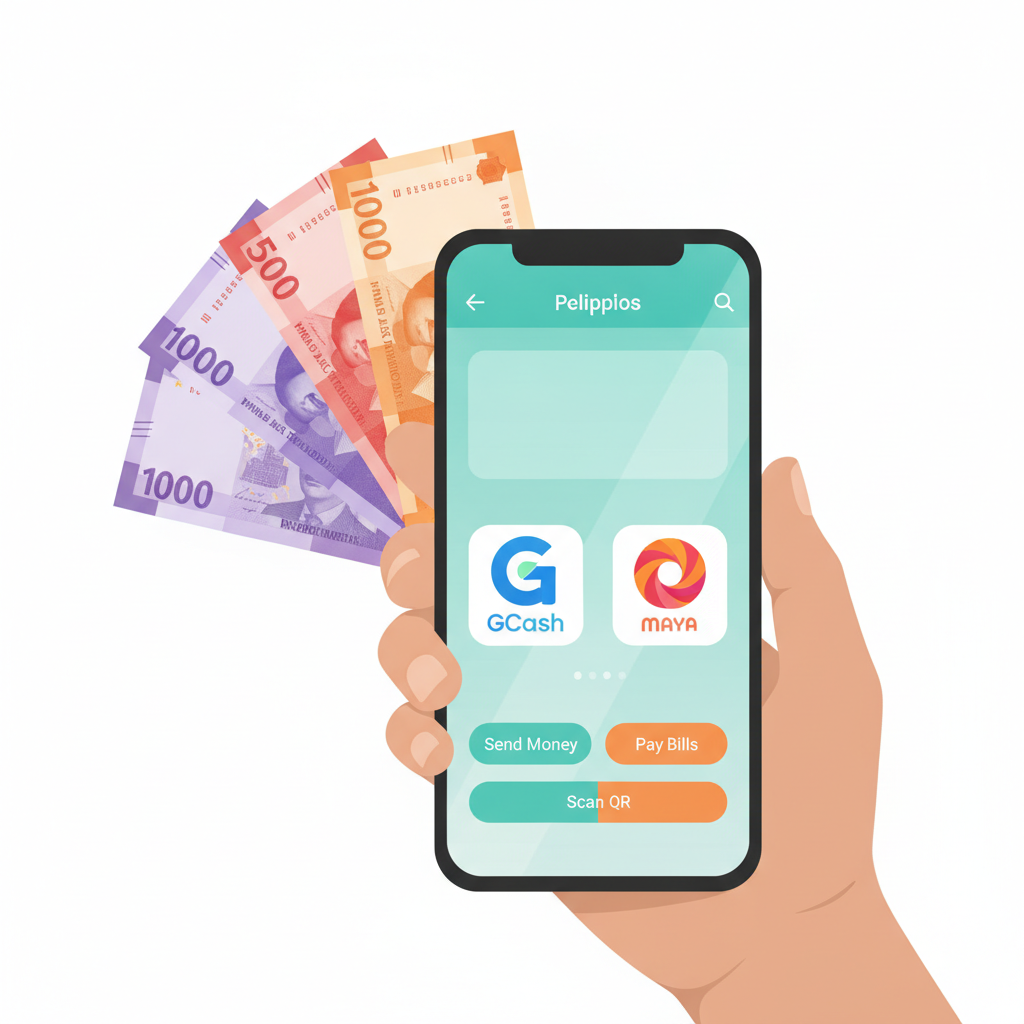
Minimum Deposit Amounts at JD Quest
JD Quest sets a minimum deposit of PHP 100 across all payment methods—GCash, Maya, InstaPay, and PESONet. Most Filipino players deposit between PHP 100 and PHP 500 per transaction, which is enough to try a few slots spins, place bets on PBA or NBA games, or join a live dealer table.
There is no published maximum per transaction on the site's deposit page, but e-wallet providers and banks enforce their own daily limits. GCash, for example, caps merchant payments depending on account verification level. If you plan to deposit more than PHP 10,000 in a session, check your e-wallet or bank app first.
JD Quest is for players aged 21 and over only. Deposit only what you can afford to lose, and set a budget before you start playing.
Step-by-Step: Depositing with GCash on Mobile
GCash is the most common deposit method among Filipino players because it is fast, widely accepted, and available 24/7. Follow these steps to fund your JD Quest account using GCash from your Android phone:
1. Log in to your JD Quest account
Open the JD Quest site in your mobile browser and tap Login. Enter your registered phone number or email and password, then tap Sign In.
2. Navigate to the Deposit page
Once logged in, look for the Deposit button—usually found in the top menu, sidebar, or your account dashboard. Tap it to open the cashier.
3. Select GCash as your payment method
You will see a list of available deposit options: GCash, Maya, InstaPay, and PESONet. Tap GCash.
4. Enter the deposit amount
A field will appear asking you to enter the amount. Type in at least PHP 100. Double-check the number—once the transaction is submitted, most platforms do not allow edits.
5. Confirm and proceed
Tap Submit or Proceed. The page will redirect you to the GCash payment gateway or prompt you to open the GCash app if you have it installed.
6. Authenticate in the GCash app
Your GCash app will open automatically (or you will receive a payment link via SMS). You will see a payment request showing the merchant name (usually the payment processor used by JD Quest, not "JD Quest" itself), the amount, and a reference number.
Review the details, then enter your GCash MPIN to authorize the payment.
7. Wait for confirmation
Once you tap Pay, GCash processes the transaction instantly. You will see a success screen in the app. The JD Quest site should refresh and display a deposit confirmation message within seconds. Your new balance will appear in your account dashboard.
If the page does not update automatically, go back to your account balance or refresh the browser. The funds should be visible within one to two minutes.
Step-by-Step: Depositing with Maya on Mobile
Maya (formerly PayMaya) works almost identically to GCash. It is another popular e-wallet in the Philippines and is accepted at JD Quest for instant deposits.
1. Log in to JD Quest
Open your mobile browser, go to the JD Quest site, and tap Login. Enter your credentials and sign in.
2. Go to the Deposit section
Tap the Deposit button in the menu or dashboard.
3. Choose Maya
From the list of payment methods, select Maya.
4. Enter the amount
Type the deposit amount—minimum PHP 100. Confirm that the number is correct.
5. Submit the request
Tap Submit or Confirm. You will be redirected to the Maya payment page or prompted to open the Maya app.
6. Authorize the payment in Maya
The Maya app will launch (or you will receive a payment link). You will see a screen showing the payment amount, merchant name, and reference code.
Enter your Maya PIN or use biometric login (fingerprint or face unlock if enabled) to approve the payment.
7. Check your JD Quest balance
After authorizing, Maya will display a success message. Return to the JD Quest tab in your browser and check your balance. The deposit should reflect within seconds. If it does not appear immediately, refresh the page or wait up to two minutes.
InstaPay and PESONet Bank Transfer Instructions
If you prefer to deposit directly from your bank account, JD Quest supports InstaPay and PESONet. Both are bank-to-bank transfer networks in the Philippines, but they differ in speed:
- InstaPay processes transfers in real time (usually within seconds to a few minutes), 24/7.
- PESONet is a batch system that processes deposits during banking hours, usually within the same day or the next business day.
For most players who want to start playing right away, InstaPay is the better choice.
How to deposit via InstaPay or PESONet
- Log in to JD Quest and tap Deposit.
- Select Bank Transfer, InstaPay, or PESONet (the exact label depends on how the cashier is set up).
- The system will display the receiving bank details: account name, account number, and bank name. Some platforms also show a unique reference code you must include in your transfer.
- Copy or screenshot these details. Do not refresh the page or close it before completing the bank transfer, as the reference code may change.
- Open your bank's mobile app or online banking portal.
- Go to Send Money or Transfer Funds.
- Choose InstaPay for instant transfer or PESONet for same-day or next-day processing.
- Enter the recipient account number and bank name exactly as shown on the JD Quest deposit page.
- Enter the amount (minimum PHP 100) and add the reference code in the notes or message field if required.
- Review the details and confirm the transfer. You may need to enter your banking PIN or OTP.
- Wait for the bank to confirm. InstaPay transfers show a success message almost immediately; PESONet transfers will be queued.
- Return to JD Quest and check your balance. For InstaPay, funds usually arrive within 5 to 15 minutes. For PESONet, expect delivery within a few hours to one business day.
Tip: Always save or screenshot the bank transfer confirmation. If your deposit does not appear in JD Quest after the expected time, you can send the proof to JD Quest customer support to help trace the payment.
Deposit Confirmation: What to Expect
No matter which method you use—GCash, Maya, InstaPay, or PESONet—you should see your deposit reflected in your JD Quest account balance as soon as the payment clears.
How to verify your deposit arrived
- Go to your account dashboard or wallet section.
- Check the balance display at the top of the page.
- Look for a transaction history or deposit history link (often under "My Account" or "Cashier"). This will show the date, time, method, amount, and status of your deposit.
If the status shows Pending, wait a few more minutes. For GCash and Maya, most deposits complete within two minutes. For InstaPay, allow up to 15 minutes. PESONet can take several hours.
If the deposit still does not appear after the expected window, contact JD Quest customer support through live chat or the help center. Provide your transaction reference number, the amount, and a screenshot of your e-wallet or bank confirmation.
21+ Only and Responsible Gambling Reminder
JD Quest is for players aged 21 and over only. Before making your first deposit, decide how much you are comfortable spending and stick to that limit. Deposit only money you can afford to lose. Gambling should be a form of entertainment, not a way to make money or solve financial problems.
If you feel you are spending too much time or money, or if gambling is affecting your daily life, consider setting deposit limits in your account settings or reaching out to a responsible gambling support service in the Philippines.
Play responsibly, know your limits, and enjoy the games on your terms.